Windows and Android Security Best Practices
February 21, 2026
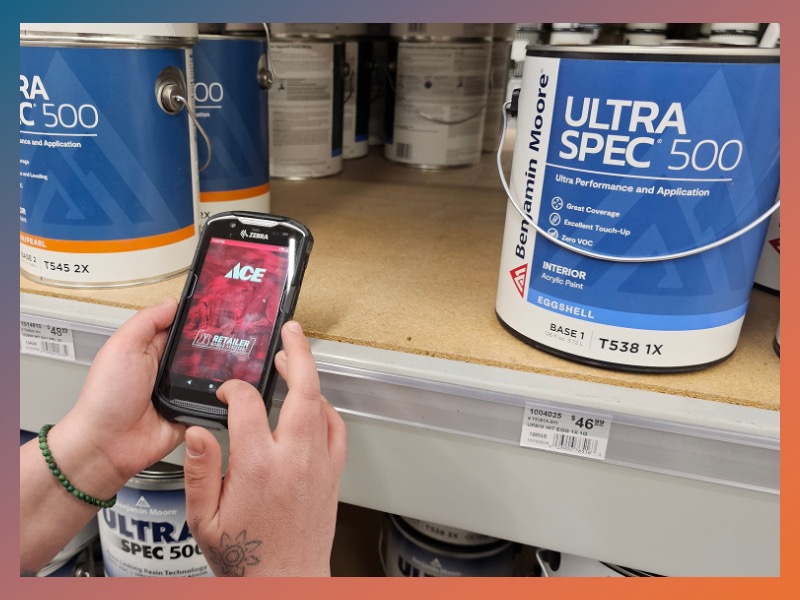
Your Ace Hardware store relies on two critical technology platforms every single day: Windows workstations (sales floor, back office, laptops) and Android Zebra handheld devices.
If either one is misconfigured, unpatched, or loosely managed, your store becomes exposed – not just to malware, but to ransomware, credential theft, PCI violations, and operational disruption.
DilSe.IT has recently published updated Windows Security Best Practices and Android Security Best Practices tailored specifically for Ace Hardware retail environments on Ace Way of Retailing (AWOR – requires login).
🖥 Windows Workstations
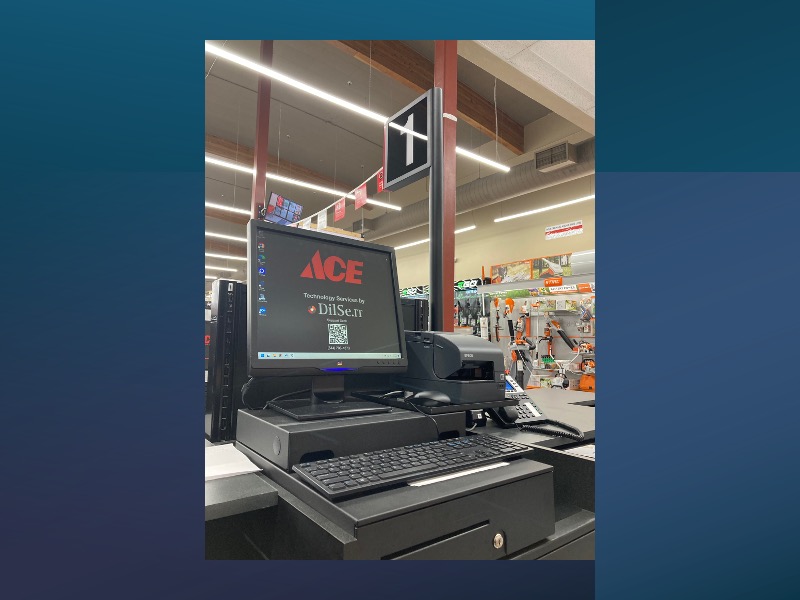
Microsoft Windows computers run mission-critical systems like Epicor and paint tinting equipment and they also enable vendor portal access and communications both internally and externally.
Key Best Practices:
- Always Keep Windows Updated – Security patches close vulnerabilities exploited by ransomware and malware. Updates must remain enabled and devices must be restarted when prompted.
- Use Antivirus Software and Monitor It – Epicor CaptureClient or other commercial-grade antivirus must remain active on all Windows computers. Actively monitored antivirus is superior to passive systems.
- Separate Administrative and Standard Accounts – Daily work should never be done under an administrator login. A standard user account limits the damage if malware is encountered.
- Require Strong Passwords and 2FA – Use 14–20 character passphrases where possible. Enable company-approved two-factor authentication wherever supported.
- Keep Windows Firewall Enabled – Even if you have a SonicWall or other hardware firewall, Windows Firewall provides device-level protection.
- Lock Screens and Remove Old Accounts – Press the Windows + L key combo whenever stepping away. Disable former employee accounts immediately.
- Control Downloads and Software Installation – No unauthorized browser extensions, remote tools, VPNs, or random software downloads. Blocked downloads are a security feature — not an inconvenience.
📱 Android Zebra Handheld Devices
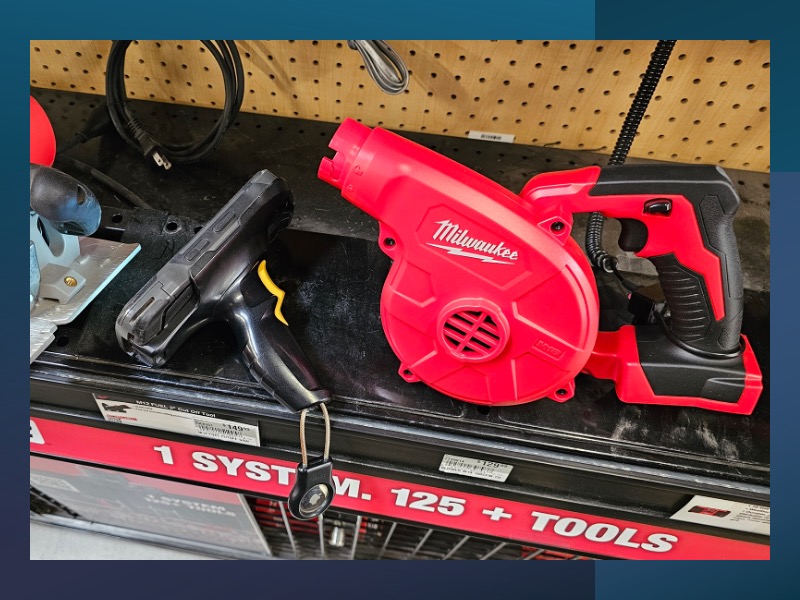
Zebra Android devices are now mission-critical in Ace stores – inventory, receiving, mobile POS, dot-com order picking, Ace Retailer Mobile App access, vendor systems, and more. Because they are mobile and frequently shared, they present unique risks if not tightly controlled.
Key Best Practices:
- Business Use Only – These are not personal devices. No social media, entertainment apps, or personal Gmail accounts.
- Use a Store Owned Google Account – Device provisioning must use a company-controlled account secured with MFA, never an employee’s personal account.
- Enable Strong Screen Locks – Minimum 6-digit PIN. Lock after 1–3 minutes of inactivity. Change PINs every 90 days.
- Keep Android OS Updated – Automatic updates must be enabled. Replace devices that no longer receive security patches.
- Segment Wi-Fi from the Cardholder Data Environment – Zebra devices should be placed on a secure, segmented Wi-Fi network separate from the Cardholder Data Environment whenever possible.
- Restrict Apps and Browsers – Mobile Device Management (MDM) is available for retailers who want centralized control. Zebra Enterprise Home Screen (EHS) can lock devices to approved apps only.
- Prepare for Loss or Theft – Lost Zebra devices are cybersecurity incidents. Remote lock and wipe capabilities must be understood and ready.
Why This Matters
One compromised Windows workstation or Zebra device can increase PCI compliance scope, expose login credentials, enable the spread of malware, trigger expensive cyber incident response, and damage your store’s reputation in your community.